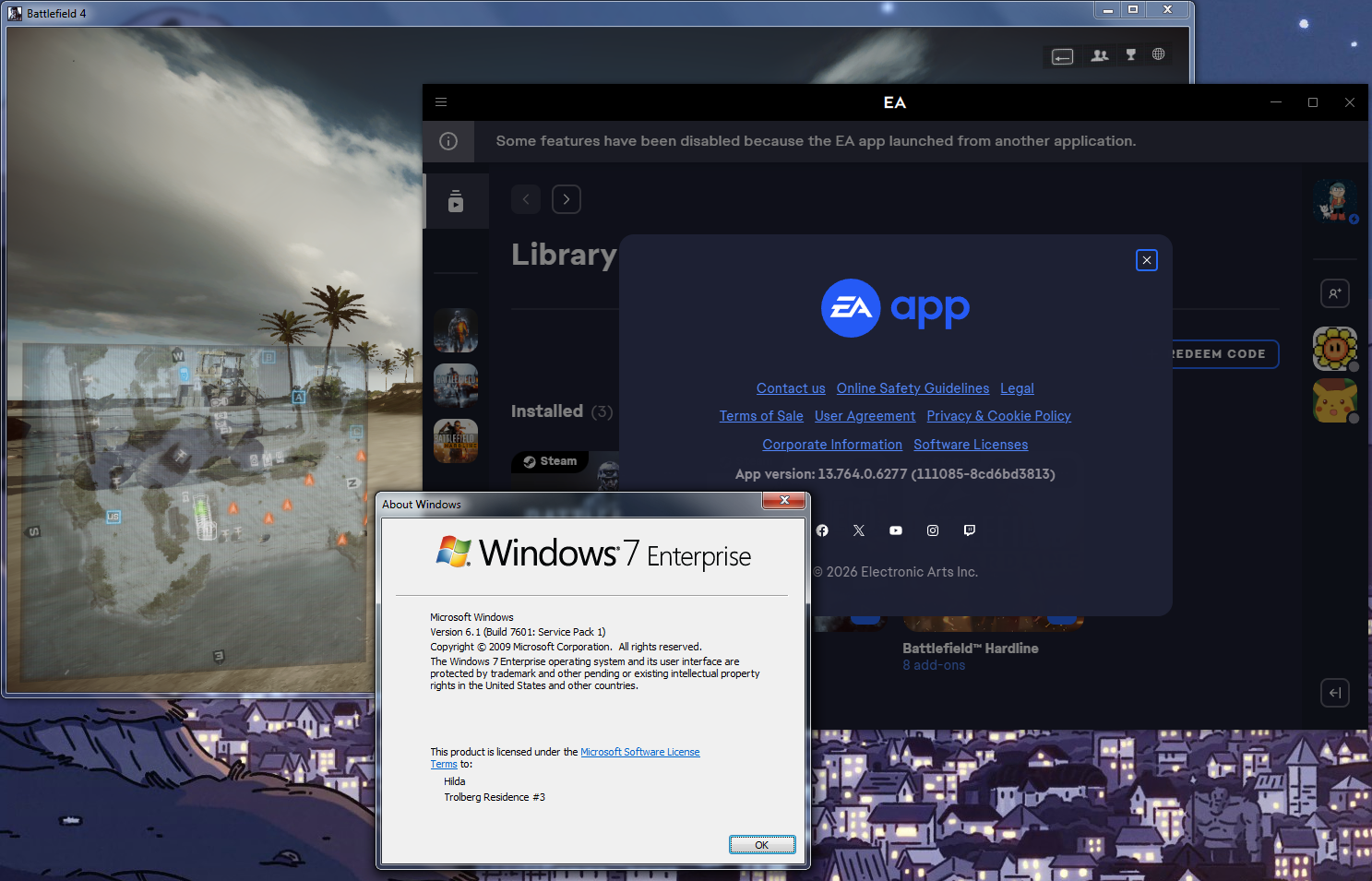
EA app on Windows 7
Continuing to use EA app after EA's discontinuation and breakage
Step 1: Installing EA app
By default, setup does not work as attempting to install normally will always error out with INST-21-25006.
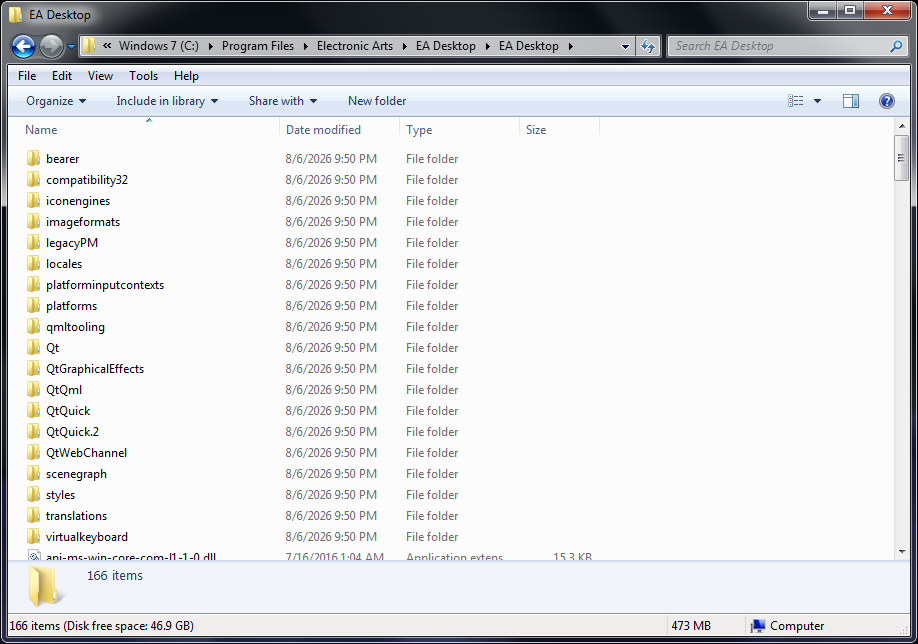
This can be fixed copying the entire "Electronic Arts" install folder on your Windows 10/11 PC and then paste it to the "Program Files" directory.
If your EA app was updated and has both the version and mklink folder, delete the EA Desktop mklink, move the "EA Desktop" inside "13.XXXXX.XXXX-XXXXXXXXXX" folder to prior root and delete that version folder. It should look like this:
Step 2: Acquiring DLLs files and applying registry files
By default, the EA app needs three missing DLLs and as well as two registry dependencies for EABackgroundService and WOW6432Node.
Download this zip file and extract the DLLs to the EA Desktop folder and merge the registry files.
Step 3: Getting EA app to work
Method 1: Replacing system files (Windows 7 only)
This is a quick and dirty method that is suitable only for those who don't want to patch out the calls everytime and is running the final update (2026-01) released for Windows 7. This method also allows automatic updates to work properly, although you need to extract three DLLs found in the extracted folder everytime if there is a new update. Special thanks to EAZY BLACK for providing the files.
From the same zip folder you extracted, go to Method 1 folder, and extract two files (kernel32.dll and k32_ex.dll) to the System32 folder.
Method 2: Manual patching
This method is suitable for those who are not conformable with replacing system files or is running Windows 8.0. Do note that you will need to manually update the app by redoing Step 1 and repatching out the function calls on the executables.
The following executables needs to be patched:
EALauncher.exe
EALaunchHelper.exe
EADesktop.exe
EACefSubProcess.exe
EALocalHostSvc.exe
EABackgroundService.exe
EA games through Steam executables:
EASteamProxy.exe
EASteamLauncher.exe
EASteamAuthHelper.exe
Link2EA.exe
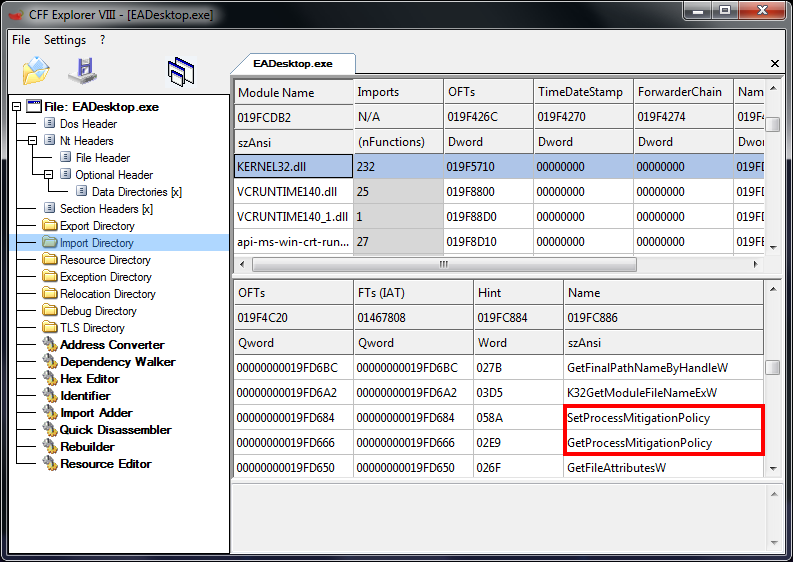
For this step, open the executable file in CFF Explorer, navigate to the Import Directory -> KERNEL32.dll in the screenshot below and then change both SetProcessMitigationPolicy and GetProcessMitigationPolicy to a different function.
(Ex. SetProcessMitigationPolicy and GetProcessMitigationPolicy -> GetProcAddress)
After doing either of these methods, restart your computer in order for background services to work.
Enjoy!
Troubleshooting:
1. If your EA app was manually updated by running
EAUpdater.exe, you will need to completely uninstall the app as doing so will permanently brick the app with DiscardVirtualMemory missing function error.
2. If your games started crashing on startup, delete this registry key:
HKEY_LOCAL_MACHINE\SOFTWARE\Electronic Arts\EA Desktop